How to View EXIF Data on Windows 11
On this page
To view EXIF data on Windows 11, right-click the photo in File Explorer, choose Properties, and open the Details tab. Scroll to the Camera and GPS sections for settings and coordinates, when available. You can also open the picture in Microsoft Photos and look for File info.
That is enough to check which camera took a JPEG or what shutter speed it used. If Windows leaves a field blank, inspect the original file with a full metadata viewer before assuming the information is gone.
How do you view EXIF in File Explorer?
Select one photo, press Alt+Enter, and choose Details to read the properties Windows can extract.
The mouse route is right-click > Properties > Details. Use an actual image saved on your PC. If it lives in a cloud folder, let the original finish downloading first. A browser preview or shortcut does not give you the same file to inspect.
Scroll through the list. A camera JPEG may show Date taken, Camera maker, Camera model, F-stop, Exposure time, ISO speed, and Focal length. A GPS section can appear farther down. Images that lack those fields will show a shorter report.
Choose a single image for this first check. Selecting several files can show shared values or blank rows where their properties differ. Also, some rows allow editing. Close the window when you finish reading unless you intend to change something.
How do you see photo information in Microsoft Photos?
Open the picture in Photos and select File info, usually shown by an information icon or available in the menu.
Photos can display the image alongside a compact information panel. Depending on the app version and file, you may see its name, size, dimensions, date, camera settings, and location. The menu placement differs between the current Photos app and Photos Legacy, both of which Microsoft documents in its Photos app guide.
This view is convenient when you want to connect an exposure setting with the picture in front of you. For instance, you can check whether a blurred frame used a slow shutter speed without closing the image. Photos still presents a selection of fields, so use a fuller report for a lens serial number, detailed software tags, or XMP records.
Which fields should you look for?
Read the camera and exposure rows for shooting settings, Date taken for capture time, and GPS for embedded coordinates.
| Windows label | What it tells you |
|---|---|
| Camera maker / Camera model | The manufacturer and device recorded in the photo |
| F-stop | Aperture, such as f/2.8 |
| Exposure time | Shutter duration, such as 1/250 second |
| ISO speed | The recorded ISO setting |
| Focal length | Lens focal length, usually in millimeters |
| Date taken | A capture date resolved from supported photo metadata |
| GPS latitude / longitude | Stored coordinates, if present and recognized |
| Program name | Software that wrote the corresponding metadata field |
A full viewer may use names such as FNumber, ExposureTime, or DateTimeOriginal instead. Our guide to finding camera settings from a photo explains those labels. The values describe what the file records; editors can change them later.
How can you compare EXIF across a folder?
Switch File Explorer to View > Details, then add photo columns by right-clicking the column headers and choosing More.
Select fields such as Date taken, Camera model, F-stop, and ISO speed when available. Click a header to sort. This is much faster than opening Properties for every image after a practice shoot. You can group shots by camera or spot the frames with high ISO.
The Details view is the table of files. The Details tab lives inside each file’s Properties window. Windows also has a Details pane, which shows a summary beside the folder. The similar names make instructions harder to follow than they should be.
Keep only the columns you need. A folder with dozens of metadata columns becomes awkward to browse, and Explorer can take time to read a large collection.
Why do Date, Date taken, and Date created disagree?
They can describe different events, and Windows may read a photo date from more than one metadata format.
Date created describes creation of the current file on the file system. Date modified records a file change. Copying, downloading, or exporting can affect those dates. For the camera’s recorded time, look for DateTimeOriginal inside the image.
In a Windows 11 Reddit discussion about the Date column, a user saw a 1925 date on a JPEG despite an empty EXIF original-date field. The thread questioned where Explorer found it. That report does not establish that Windows scans free-text descriptions for dates.
Microsoft’s DateTaken metadata policy does document multiple sources for JPEG dates, including EXIF, IPTC, and XMP. When the date matters, compare the named fields in a full report. The guide to telling when a photo was taken covers missing time zones and incorrect camera clocks too.
Why is the Details tab empty when another app finds metadata?
Windows may not expose the tags or format that another reader understands; an empty panel is only one reader’s result.
A Google Photos user on Reddit downloaded media and saw little information in Windows Properties, while Lightroom Classic showed GPS, an iPhone camera name, and the expected date. Their main example involved MOV video, so it is not a JPEG test. It does illustrate why checking another reader can resolve an apparent loss of metadata.
For photos, start with the exact file path and extension. A HEIC original, converted JPEG, and chat download may look identical but carry different fields. Opening the image successfully also does not guarantee that Explorer understands every metadata block inside it.
If a second reader finds the field, it survived. If neither finds it, compare the camera original or a backup before blaming Windows. Converting the image just to make a row appear creates another copy to investigate.
How do you view more complete EXIF and GPS data?
Open the original photo in the Image Metadata Viewer and search for the specific tag you need.
ViewExif reads supported JPEG, PNG, WebP, HEIC, TIFF, and GIF files in your browser tab. The selected file stays local. Start with the readable sections, then use the native fields to check records that Explorer omits.
For location, search GPSLatitude and GPSLongitude and keep their north/south and east/west references. For time, search DateTimeOriginal. For authorship or editing details, look for Artist, Software, XMP, and IPTC. You can copy values or export the report to compare two versions of a picture.
Use the image metadata checking guide if you need help interpreting the other sections. A viewer can report stored coordinates, but it cannot recover an exact location from absent GPS tags.
Do not confuse the General and Details tabs
The General tab describes the local file, including when that copy was created or modified on the current system. Details can expose selected embedded properties through the installed file handlers. A value absent from Details may still exist in another metadata group.
If two viewers disagree, confirm they opened the same file and compare the field source. Do not install a codec or convert the image solely to make a date appear: conversion creates another file and can change the record. Use a reader that supports the original format, then distinguish a missing field from a failed read.
How do you remove private details before sharing?
Create a separate cleaned copy, then inspect that output to confirm which fields remain.
Windows offers Remove Properties and Personal Information at the bottom of Properties > Details for supported files. Choose Create a copy with all possible properties removed to keep the original. The words “all possible” matter: the result depends on what Windows can remove.
An r/WindowsHelp user reported exposure fields remaining after using that option. Treat it as a reason to verify your own output, rather than a guarantee about every Windows version or image format.
Run the outgoing file through the Image Privacy Checker to check GPS, names, device details, and other sensitive fields. The Image Metadata Remover creates a cleaned copy and reports verification results. Review any preserved or residual fields before sending it. Keep the original separately if you want its dates and camera settings for your archive.
Frequently asked questions
Do I need to install anything to view EXIF data on Windows 11?
No. File Explorer's Properties > Details tab can show basic camera and photo information. A browser metadata viewer can expose more fields without installing a desktop app.
Does opening Properties change a photo's EXIF data?
Viewing the Details tab does not rewrite EXIF. Some rows are editable, so avoid typing into them and applying changes if you only want to inspect the photo.
Can Windows 11 show the GPS location of a photo?
Yes, the Details tab can show a GPS section for supported files that contain recognizable coordinates. If it is absent, check the original file in a full metadata viewer before concluding that GPS is missing.
Why does a PNG show fewer camera details than a JPEG?
A PNG may come from a screenshot or export that never recorded camera settings. Windows also exposes different properties for different formats. Inspect the file itself to distinguish missing tags from fields Windows does not display.
Can I recover EXIF that a website removed?
A viewer cannot recover tags that no longer exist in the downloaded file. Ask for the camera original or check a backup. A different viewer only helps when the tags are present but your current app hides them.
Keep reading
See all guides
How to Check Metadata of an Image
Open the exact image file in a metadata viewer to check its camera details, capture date, GPS, software, author fields, and other embedded records.
Read the guide
How to Tell When a Photo Was Taken
Start with DateTimeOriginal in the original image, then compare other EXIF dates and file timestamps before treating the result as reliable.
Read the guide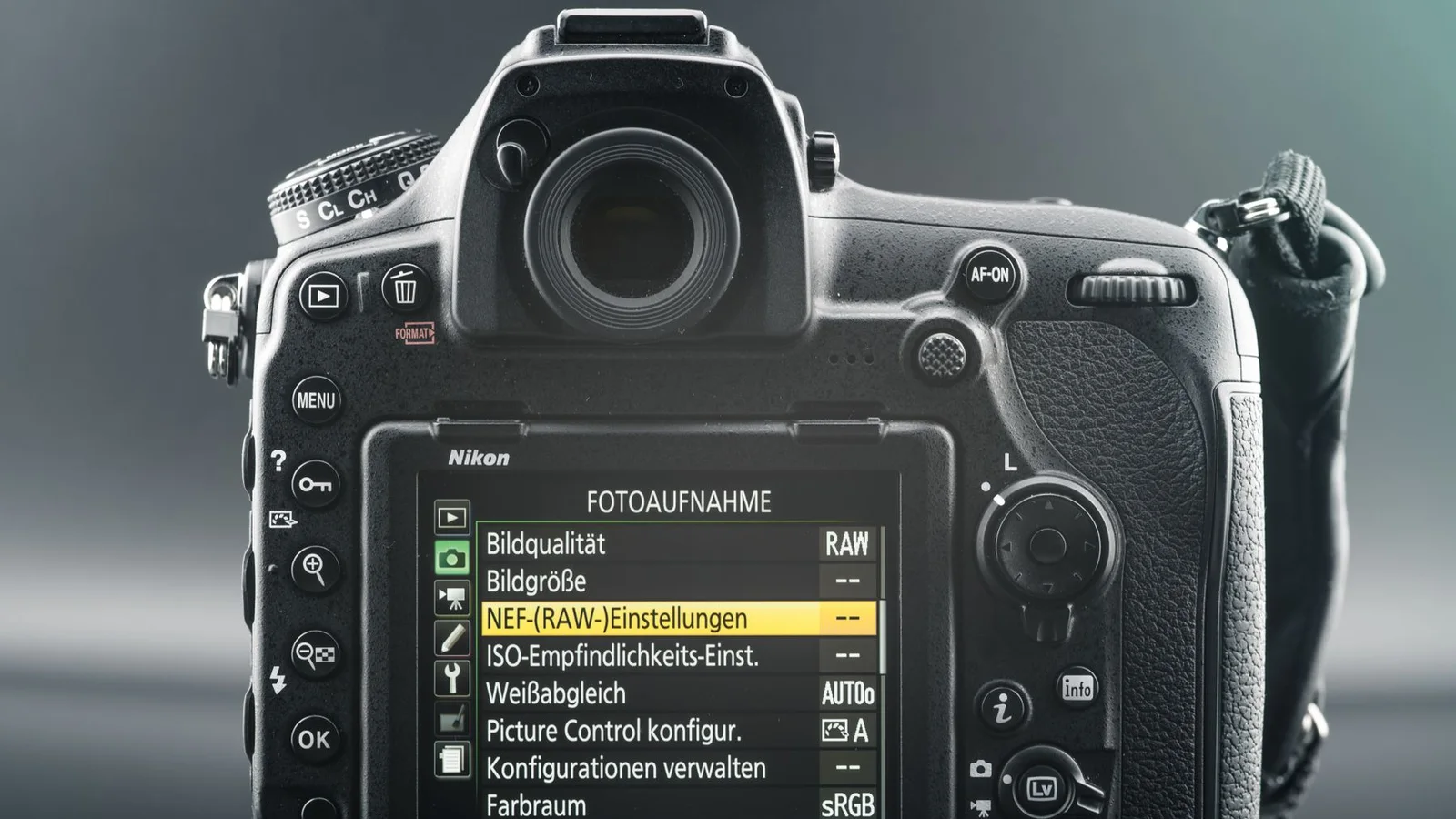
How to Find Camera Settings From a Photo
The original photo may record its camera, lens, ISO, aperture, shutter speed, and focal length in EXIF. Here is where to find those fields—and what a missing field really means.
Read the guide